Timers

There are many reasons you might want access to a timer on your computer. For one thing, it can be good for students learning to budget their time to be able to gauge the amount of time left to complete their task. Also there may be times when people need to take a break or simply stop what they are doing. I myself often need to have an audible or visual reminder to stop and move on to the next task or leave for an appointment. Fortunately, there are many options, both downloadable and online, which could meet your needs. This post will present three of these options; a Google search will provide you with a long list of sites if you wish to pursue this further.

ORZESZEK. Kim Komando (komando.com) this morning shared Orzeszek Timer, FREE downloadable software. Nothing could be simpler than this little timer. A small window opens for you to enter the length of time, in a variety of formats as explained on the Orzeszek website:


  • 5 – 5 minutes
  • 2.5 – 2 minutes 30 seconds
  • 1d 5h 3m 25s – 1 day 5 hours 3 minutes 25 seconds
  • 1.05:03:25 – 1 day 5 hours 3 minutes 25 seconds
  • 1 5 3 25 – 1 day 5 hours 3 minutes 25 seconds
  • 01/01/2011 – until midnight on 1 January 2011
  • 01/01/2011 5:00 PM< – until 5:00 pm on 1 January 2011

  • To change the sound (no notification, loud, normal, or quiet) or change other options (e.g., change size, close when done, loop timer), simply right-click on the window and choose from a drop-down menu. You can also customize sounds by adding .wav files to the Sounds folder.

    Don't forget that when you unzip the downloaded file, the unzipped files will be placed in your Downloads folder by default. Be sure to put them in a place where you will know where they are and won't lose them.

    ONLINE STOPWATCH. I like Online Stopwatch, a Flash-based timer, for classroom projection because it is full-screen. It can be used for counting up or counting down.

    The display shows complete time remaining or elapsed in hours, minutes, and seconds.


    TIME ME. TimeMe provides a variety of QuickTime timers, both downloadable and online. Its display is much simpler than that of Online Stopwatch, so might be preferable in some instances.

    One of TimeMe's timers is digital Alarm Clock. As an additional function, it can be displayed simply as a digital clock. Its appearance is the same as the Stopwatch.

    PROTECT YOUR VISION. This timer is a little different. It is used on an individual's computer to remind the user to rest his/her eyes from looking at the monitor.

    According to protectyourvision.org, "Around 70% people in developed countries experience eye discomfort and vision problems when viewing a computer screen for more than 2 hour daily. The level of discomfort appears to increase with the amount of computer use.
    The most common symptoms of CVS [Computer Vision Syndrome] are:


  • eyestrain
  • headaches
  • blurred vision
  • dry, irritated eyes
  • double vision
  • difficulty refocusing the eyes
  • neck and shoulder pain"


  • This timer can be set to blank the computer monitor (or not if you prefer) after a set amount of time and for a set of time. For example, the default is to blank the monitor after 20 minutes for 20 seconds and then repeat that sequence. As you can see from the image above, you can also set it for 60 minutes of work with a 5 second rest.

    In addition, the site provides a set of  "Eyes Gymnastics" which you can use during the break time to help relieve the eye tension caused from constant viewing of the monitor. 

    If you don't like the little space guy ("minimal" theme), you can also choose from a "sunny" theme with a beach scene and a "space" theme.
    Read Users' Comments (1)comments

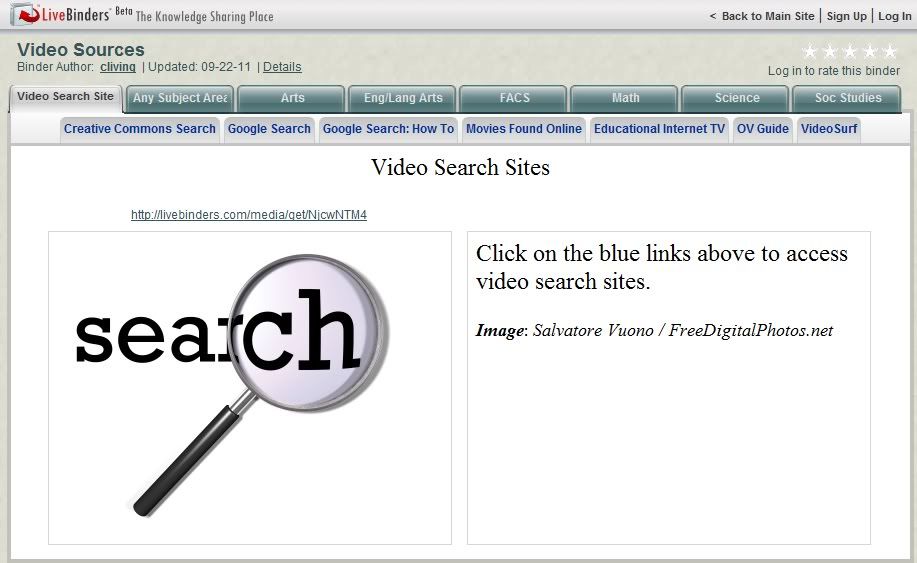
    Video Sources

    Perhaps some might find useful a LiveBinder of video sources I compiled for a workshop I did earlier this year. 

    It includes hundreds of sources categorized by discipline as well as some links for searching. Sites provide FREE videos, though some may also include videos available for a fee.

    If you haven't found LiveBinders yet, you might find it useful as well. It's a great way to organize links and to make them available to others. The fact that most (unless the site must be viewed in its own window) will display right on the LiveBinders page can be a benefit in some circumstances as well. It's FREE to use if you wish to create your own binder (public or private), and a search can bring up some great binders which have been created by others.

    Read Users' Comments (0)

    100 Video Sites Every Educator Should Bookmark

    [One of the] Last of its kind
    CC Licensed photo
    by Clint Gardner
    I'm always on the lookout for good listings of websites, and this one via Twitter was a real gem of a find! It brought to my attention another blog to follow: The Innovative Educator: Way out of the box!

    The sites included on the 100 Video Sites Every Educator Should Bookmark post are categorized by Educational Video Collections
    General Video Collections
    Teacher Education (my personal favorite, Teacher Training Videos, is included here)
    Lesson Planning
    Science, Math and Technology
    History, Arts and Social Science
    Video Tools
    Network and Program Videos
    Free Movies and Clips (free is good!)
    How- Tos
    Government Organizations.

    If this listing doesn't appeal to you, you ought to take a look at the blog anyway. There's some pretty great stuff there!

    Read Users' Comments (0)

    MakeUseOf Guides

    I've gotten so many good tips from MakeUseOf that it's one of my favorite sites; they find and review a lot of things I simply don't have time to look for.

    They also have currently 38 free downloadable guides in PDF format on such varied topics as iTunes, iPhone, Linux, Photoshop, digital photography, online shopping, building a gaming PC, Twitter, creating professional documents in Microsoft Word, Twitter, and the Internet Guide for the Movie Addict. There's really something for almost everyone.

    You might be interested in these other posts about resources I've learned of from MakeUseOf: Creative Commons, Semantic Search Engines, Functional Screensavers (PC and Mac), SAT Test Prep,

    Read Users' Comments (0)

    50 Sites in 60 Minutes

    50 Sites in 60 Minutes ver. 2 will introduce you to 50 online tools to use in the classroom or for personal use. Sites included are appropriate for a variety of age levels. Tools are for audio, charts and graphs, digital art, digital storytelling, and several miscellaneous applications. Each slide includes a link to the site as well as a link a review of the site by David Kapular on his blog, Technology Tidbits: Thoughts of a Cyber Hero.

    If you're interested in finding new web tools, you may want to follow his blog.

    This slideshare presentation is a good example of the great finds I receive in my e-mailbox as a member of Diigo's Web Tools for Educators group. (Read my post on Diigo here.) If you'd like to see what great web tools others find, just create a FREE Diigo bookmarking account and join the Web Tools for Educators group.

    Read Users' Comments (0)

    EduBlogs Teacher Challenge

    Though it may sound like it, Teacher Challenge is NOT a competition or contest--please read on!

    There is a wealth of free tools on the web for educational use. With all the time teaching takes, during the school day and on into the evenings, who can keep up with them, let alone learn to use them? Well, here comes Edublogs, known as a great site for hosting educational blogs, with a great idea.

    The goal of Teacher Challenge is providing free professional development for educators. The current challenge presents structured tutorials for free online tools...21 of them at the moment. Each one gives directions to get you up and going with the tool along with tips and suggested ways to use it in the classroom. Take a look at #7--Kerpoof for an example.

    Interested in blogging for yourself or your students but don't know quite where or how to start? Previous challenges were "Kick Start Your Blogging" and "Blogging with Students." Links to these are along the side of the Teacher Challenge page.

    What about PLNs? The power and connectivity of the Internet makes it an amazing time for building PLNs. That's the topic of the next Teacher Challenge, so subscribe to their RSS feed or keep checking back to the site to see when it starts if you're interested.

    Read Users' Comments (0)

    SpyPig

    Ever need to know that someone actually opened the email message you sent? Most web-based email providers don't have a return receipt feature, and some don't allow you to run messages through a local client like Outlook or Thunderbird. In looking for an easy solution to that problem for #2 son this evening, I found SpyPig.

    "SpyPig is a simple email tracking system that sends you a notification by email when the recipient opens your message. It works with virtually all modern email programs: Outlook, Eudora, Yahoo Email, Gmail, Hotmail, AOL Email and many others." Nothing to install, no registration required, and of course, it's FREE.

    I checked it out and found that it is simple and it works. Get your message ready first. Then go to SpyPig and enter your email address and the message title. SpyPig will use that to create an image for you to paste somewhere in your message. Don't worry, you don't have to use a picture of a pig...though you could if you wanted to; one of the options is a blank image. I tried it and found that it worked like a charm.

    The one requirement that could cause it to fail is that both the sender and receiver must use HTML email, not plain text or rich text format.

    Read Users' Comments (0)
