Google Creative Commons Image Search
| CC Licensed photo by Franz Patzig |
![]() |
| Google Image Search Advanced Search |
Posted in Labels: Creative Commons, Google, images, photo, search | at 7:44 PM
| CC Licensed photo by Franz Patzig |
![]() |
| Google Image Search Advanced Search |
Posted in Labels: Google, reading, reading level, search | at 8:58 PM
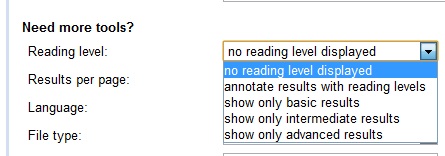
I'm beginning to wonder if I couldn't do an entire year of Google tips! The ability to filter search results by reading level was apparently added in early December 2010.
Here are the description and directions from Google support:
Sometimes you may want to limit your search results to a specific reading level. For instance, a junior high school teacher looking for content for her students or a second-language learner might want web pages written at a basic reading level. A scientist searching for the latest findings from the experts may want to limit results to those at advanced reading levels. To limit your search results to a specific reading level, follow these steps:
1. On the search results page, click Advanced Search below the search box.
2. Next to "Reading level" within the "Need more tools" section, select your desired reading level (basic, intermediate, or advanced) or choose to show all results annotated with reading levels.
3. Click Advanced search at the bottom of the page.
4. At any time, you can click the X in the right corner of the blue bar beneath the search box to go back to seeing all results.
The feature is based primarily on statistical models we built with the help of teachers. We paid teachers to classify pages for different reading levels, and then took their classifications to build a statistical model. With this model, we can compare the words on any webpage with the words in the model to classify reading levels. We also use data from Google Scholar, since most of the articles in Scholar are advanced.
Posted in Labels: Education, Google, search, tricks/ tips | at 9:20 AM
I keep learning more about some of Google's features and wonder why I never found them before. Some of them would have made my searches more efficient.
Perhaps you, like me, already knew about define:. In case this one is new to you, entering define:abstruse will list definitions of "abstruse" from a number of web sources.
Here are some more (notice that there is no space between the colon and the web page URL or term) :
link: will give you a listing of the web pages with links to the website you specified, for example, link:www.lumosity.com. This was also an advanced operator we used years ago in AltaVista and is one way to check the validity of the information provided on a website.
allintitle: will give you a list of all the websites with all of the specified query words in their title. For example, allintitle:brain games will give you a list of all websites with both "brain" and "game" in their titles.
intitle: will list documents that contain the first word in their title. Including a second word will limit the listing to those sites which also contain that word anywhere in the document. For example, intitle:prezi teach will result in a listing of all sites with "prezi" in the title and the word "teach" or "teacher" or "teaching" in the page text or title.
allinurl: and inurl: work exactly like allintitle: and intitle:, except that they look in the URL (Internet address) for the search term. For example, try inurl:washington rainforest to find websites that have "washington" in the URL and "rainforest" or "rain forest" either in the title or on the page.
related: will show a list of websites similar to the specified site. Entering related:mindomo.com will give you a listing of other websites which also create mind maps. I think this one in particular will really be useful!
There's much more power in Google than I've been taking advantage of. I'll have to see what else I've been missing.
Read Users' Comments (1)comments
Posted in Labels: Education, gmail, Google, tricks/ tips | at 10:03 AM
Did you know that you can actually "generate" multiple email addresses using one Gmail address? While some sites won't recognize them, Gmail will ignore when delivering messages to you anything following periods or a plus sign. This means that anything addressed to you as youraddress...1@gmail.com, youraddress..ab@gmail.com, or youraddress+mile38@gmail.com will be delivered to your youraddress@gmail.com inbox.
I had seen this recommended as a possibility for creating multiple student accounts on application sites and this morning looked it up for someone who requested my assistance. Rather than plagiarize the information from blog posts I read this morning, here are the links to them:
Use Gmail Generate Unlimited Email Addresses includes several other uses for this feature.
2 hidden ways to get more from your gmail address
Posted in Labels: Education, Google, search | at 7:33 AM
Have your students...or you...ever had difficulty narrowing down searches to get the right results? Sometimes they simply can't get the right combination of words, perhaps because their vocabularies are limited and they don't know them or because they aren't using the "right" synonym for one or more of the terms. Google has a search tool that lets you begin with a general term and then narrow it down step-by-step. It's the Wonder Wheel. You'll find it in the left pane of a Google search window under "More Search Tools."
Rather than try to describe it, I'll use images to demonstrate. Below are the results of a Google search for "elephant." You can see the wheel at the left with the search results at the right. (The image is small, but it will open full size if you click on it.)
Posted in Labels: 3D, art, Education, freeware, geography, Google, history, mathematics | at 9:48 PM
Google SketchUp is FREE downloadable 3D modeling software that is easy to learn and fun to use. Google information says it has been used by architectural and engineering professionals for years, which indicates that it is powerful enough for high school engineering classes working on a low budget. I can testify from personal experience that middle school students, working through the provided tutorial, can gain quite enough proficiency to create their own designs.
Posted in Labels: Education, Google, search | at 6:24 PM
Did you know that Google will let you build a custom search engine? Instead of searching the entire web, you can create a search engine that will search only the sites you want it to and exclude any sites you choose. How useful would THAT be in a classroom sometimes? For example, if you want students to access only primary resources, you could create a custom search engine that would limit their results to sites you have identified that have primary resources. You could create an engine that would search only credible science sites for your science class. There are lots of ideas for using this.
I quickly put together a custom engine to search for videos. I did not include youtube, since so many schools have it blocked, but you'll see from the number of results that there are still plenty of resources without it.
You can embed your custom engine on a webpage, as the one below, but it will also have its own URL; here's mine: Carolyn's Video Search Engine
Posted in Labels: Education, Google, video | at 9:34 PM
Ran across an old post from Vicki Davis' Cool Cat Teacher Blog about searching for educational videos using Google video search. I checked it out and found some really good resources. Rather than recreate it, here's the link to How to Search Educational Videos.
If you're interesting in using technology effectively in the classroom, Davis' blog would be a great one to follow.
Posted in Labels: curriculum resources, Education, English, Google, iPod | at 9:20 AM
I have encountered and learned from the Interesting Ways series so many times and yet never thought about sharing it here. Then today I found this page by creator Tom Barrett where he includes links to all of them. This puts all the information he has put together at your fingertips
He has used Google presentations to create slides with uses and tips for using technology in the classroom, inviting others to add to the content. The result has been a rich resource of tested-in-the-classroom ideas for a wide range of topics. Examples of topics include using audio, the Wii, Twitter, Prezi, or Google Docs in the classroom; and supporting spelling or writing in the classroom. This morning I was looking at Twelve Interesting Ways to Use an iPod Touch in the classroom,; I found things I had never considered and a piece of technology I did not know about, a way to share audio from a single iPod Touch with 5 students.
Note that since content may be added as teachers share their ideas, the number in the title may change. For example, the link I found and used to the iPod Touch presentation specified "Eleven," while the current count is up to twelve. By the time you look, it may be at thirteen!
Posted in Labels: Google, GPS, travel | at 2:46 PM
Posted in Labels: Education, Google, Literature, Map | at 10:56 AM
Wow! Someone (Jerome Burg, an Apple Distinguished Educator and Google Certified Teacher) has done what like to do when I read a book: find the locations on a map and look up information about them. THe took it one step further, and made all that available on Google Earth. On top of that, the author of the Lit Trips has included a quote and discussion questions for each location, at least for The Kite Runner by Khaled Hosseini, which is the one I've been enjoying. You'll need to download and install Google Earth to "take the trips." The file will load into the left pane of Google Earth. Just expand the selection and you'll find all the locations the author has provided. If you'd like you can read more about Google Lit Trips.
There's a good post at Infinite Thinking Machine that tells about Google Lit Trip. Also, check out the video at TeacherTube.
Posted in Labels: gmail, Google, Storage | at 12:46 AM
An article on Tech Republic alerted me to this downloadable app which allows you to use the space available with your Gmail account for file storage. It's downloadable from SOFTPEDIA. After installation, GMail Drive will show up in My Computer like any other storage media. Uploaded files will show up in the list of emails in gmail with a subject line of GMAILFS: with the name of the file, so they will be accessible even if you are not on your home computer.