SnipSnip.It

Thanks to Free Technology for Teachers for alerting me to SnipSnip.it! (If you're not reading Free Technology for Teachers or following them on Facebook or Twitter, you're missing out.) SnipSnip.it lets you easily clip a section of a YouTube video for sharing with others. This will be great for teachers, students, or presenters who want to use only a portion of a YouTube video in their projects. Use of the site is FREE and there is no registration required.

All you have to do is to paste the URL of the YouTube video into the provided box on the SnipSnip.it website and press Enter. Play the video to determine and enter the beginning and ending times of the clip you want. You will be give a code to embed the clip on a webpage and a link to view the clip on the SnipSnip site. I extracted a clip from the How to use a Flip YouTube Video Camera YouTube video to include only some basic tips for those taking videos. I have embedded the clip below, and you can view it on the SnipSnip site by clicking here.

cropped with SnipSnip


The resulting video is in the Flash format, which may limit its availability for viewing in some instances.

Read Users' Comments (0)

Kidblog

One of the stumbling blocks to having students blog is the necessity of using an individual's email address when accounts are set up. Another is the need to assure the student's safety while online, while a third is that many sites require users to be at least 13. Kidblog addresses all the concerns and, even better, it is FREE.

Kidblog was designed by teachers for teachers, primarily for elementary and middle school use. The teacher has administrative control over her/his class accounts, and students' blogs by default are private, viewable only by their teacher and classmates. If desired, a passworded guest account can be added so parents can view their student's blog posts and comments. Rare for free accounts, there is no advertising! If you're interested in learning more, see the About Kidblog page.

I recently read an excellent blog post, Middle School Blogging: Students Constructing Their Own Knowledge, which shares examples of students' blogs and the reactions of both students and parents to the experience.

Read Users' Comments (0)

Directory of Learning Tools

This Directory of Learning Tools from the Centre for Learning and Performance Technologies offers access to a listing of  "over 2,000 Tools for Learning - for schools, colleges, universities and the workplace." Select your category from among the thirteen listed and you will be presented with an annotated listing of sites presented in a table format so that additional information can be given for each. For example, for Live Tools you can see which offer web conferencing, audio conferencing, video conferencing, screen/application/desktop sharing, remote access/control, live broadcasting, 3D/virtual worlds.

What a wonderful resource for both teachers (there is an Instructional Tools category) and students...as well as the general Internet-using population. I'm going to have fun mining this one!

Read Users' Comments (0)

Youblisher

Youblisher is an interesting site. It takes your PDF document and makes it into a flippable online document. The site requires registration, but it is 100% free.

Diigo Quick ReferenceI tried it out on a simple Word document I've been working on to see how it works. After saving it as a PDF document and uploading it, I was given a link to the publication, code to copy and paste a link to the publication, and code to embed either a small or large cover to serve as a link to the publication. Click on the embedded cover at right to view my document. When on that site, click and drag on a page to turn it.

How cool for students to be able to "publish" their creations in this way!

Read Users' Comments (0)

Brain Nook

Brain Nook  is a FREE "virtual world" that offers over 100 educational games for students based on fundamental math and English grammar concepts which are embedded in virtual worlds that the students can unlock and explore. The games are designed to also help students strengthen skills such as reading, reasoning, decision-making, analysis, memorization, dexterity, and computer literacy. Games are based on California State Board of Education standards for grades 1 through 5 (ages 6-10).

While free membership includes access to many areas of BrainNook, including a Parent Report Center where parents can track their child's progress, Premium Members get much wider access.

During account creation, a parent email address must be entered. The parent will receive an email with a link which must be clicked on to activate the account. A chat feature is available, but without free-form entry. Students with a free account may use only menu-based chat, selecting from a list of pre-approved chat phrases. Premium members can use a whitelist chat which allows them to access a preset list of safe words.

BrainNook @ School includes over 200 educational games and offers other features including student reporting.

Read Users' Comments (0)

KeePass

In an effort to keep some semblance of security, I use different passwords for different sites/programs/types of sites..and I have accounts on a lot of sites! Occasionally I have trouble coming up with the right password for one I access infrequently. Anyone with me? I have found a reasonably secure way to keep access to all those passwords at my fingertips. It's a little free program called KeePass.

Put KeePass and its database on a flash drive and you'll always have it with you. Folders are provided for you which you can rename if needed, and you can add more folders for organization if you wish to.

You use a password, a  key file, or both to access the database. Read KeePass help for further information. Be aware that there is no backdoor to the database. IMPORTANT: If you forget your password, your database is locked and useless. Think about this carefully!

You can read more about other features of KeePass on the download page at ZDNet or on the KeyPass website.

KeePass is considered a Portable App, which means it doesn't have to be installed on a computer, but can be carried and executed from a flash drive (or CD). Other OS posts on portable apps include:
System Nucleus - view, edit, and manage system resources and settings;
PortableApps Suite - a single download for a collection of apps;
Gimp - portable photo editing;
Portable Freeware - characteristics of  a portable application and a link to The Portable Freeware Collection.


Read Users' Comments (0)

Google Search by Reading Level

I'm beginning to wonder if I couldn't do an entire year of Google tips! The ability to filter search results by reading level was apparently added in early December 2010.

Here are the description and directions from Google support:

Sometimes you may want to limit your search results to a specific reading level. For instance, a junior high school teacher looking for content for her students or a second-language learner might want web pages written at a basic reading level. A scientist searching for the latest findings from the experts may want to limit results to those at advanced reading levels. To limit your search results to a specific reading level, follow these steps:
1. On the search results page, click Advanced Search below the search box.
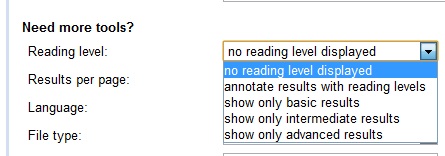
2. Next to "Reading level" within the "Need more tools" section, select your desired reading level (basic, intermediate, or advanced) or choose to show all results annotated with reading levels.
3. Click Advanced search at the bottom of the page.
4. At any time, you can click the X in the right corner of the blue bar beneath the search box to go back to seeing all results.
The image at right shows part of the results for a "solar eclipse" Google search with annotated results. Clicking on any of the three levels will limit the results displayed to those meeting the criteria for that level. You will notice, too, that the reading level is indicated for each entry.

A Google employee explains the method used to determine the reading level:
The feature is based primarily on statistical models we built with the help of teachers. We paid teachers to classify pages for different reading levels, and then took their classifications to build a statistical model. With this model, we can compare the words on any webpage with the words in the model to classify reading levels. We also use data from Google Scholar, since most of the articles in Scholar are advanced.
Understanding that the classification may not be totally accurate, it still might prove to be a useful start for finding appropriate results for the intended audience.

Read Users' Comments (0)